Effects
Every built-in effect ships pre-tuned and renders only inside the region you painted for its channel. Custom Flow gets a deeper section all to itself.
Effect Reference
Each effect renders only inside the region painted for its channel. Effect parameters are configured in the right sidebar.
Custom Flow is the only exception. Rather than a parameter list, it provides on-canvas handles for laying out the shape that the texture flows along. It is documented separately in Custom Flow — Deep Dive.
Built-in effects
Custom Flow — Deep Dive
The Custom Flow effect allows the user to configure a gradient shape and animate a texture along it, from the start of the gradient to its end. The editor provides several tools for shaping the gradient itself.
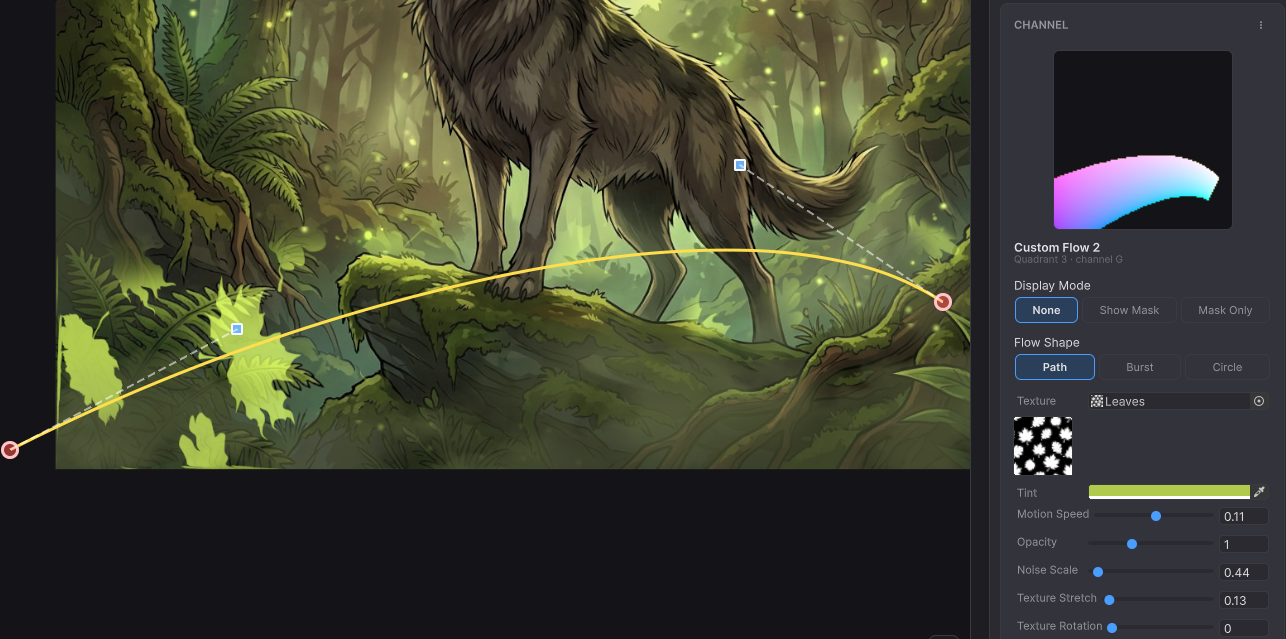
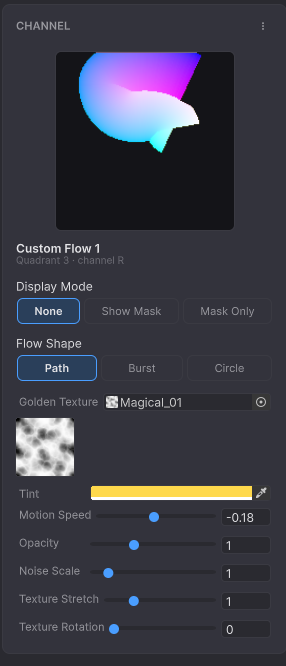
Custom Flow supports three modes: Path, Burst, and Circle. As with the other effects, the result is visible only inside the regions painted with the standard brush.
All three modes share the same texture controls. Texture is the tileable pattern that is sampled along the flow. Tint is a color multiplied with the texture. Motion Speed ranges from -4 to 4, where negative values reverse the flow direction. Opacity is the final additive multiplier, ranging from 0 to 3.
Two independent scaling parameters operate together. Noise Scale controls the texture's tiling on both axes, between 0.1 and 8. Texture Stretch stretches the texture along the path only, independently of Noise Scale, between 0.05 and 4. Texture Rotation rotates the sample UV around (0.5, 0.5), between 0 and 360 degrees.
Path mode (default)
Path mode defines a multi-point Bezier spline. The texture flows along the path, and the band thickness is configured per point, which allows the band to taper or thicken at any location along the spline.
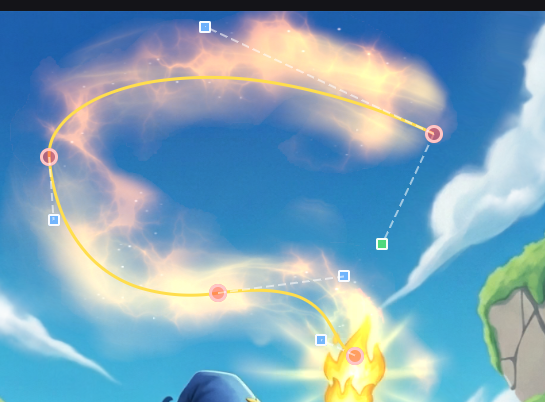
To add a point, right-click on the spline and select Add Point. The new point's tangent is derived from the curve at that location, so the spline remains smooth and does not develop sudden kinks. To remove an interior point, right-click its chip and select Remove Point. The two endpoints cannot be deleted.
Each point exposes a width chip placed perpendicular to the curve. Dragging it changes the band thickness at that point. Tangent handles are positioned alongside each control point. Dragging a handle away from its anchor bends the curve. The first and last points use mirrored-symmetric handles, while interior points share a single handle between the two adjacent segments.
End caps at the start and end of the spline are flat (perpendicular) and follow the endpoint tangent.
Burst mode
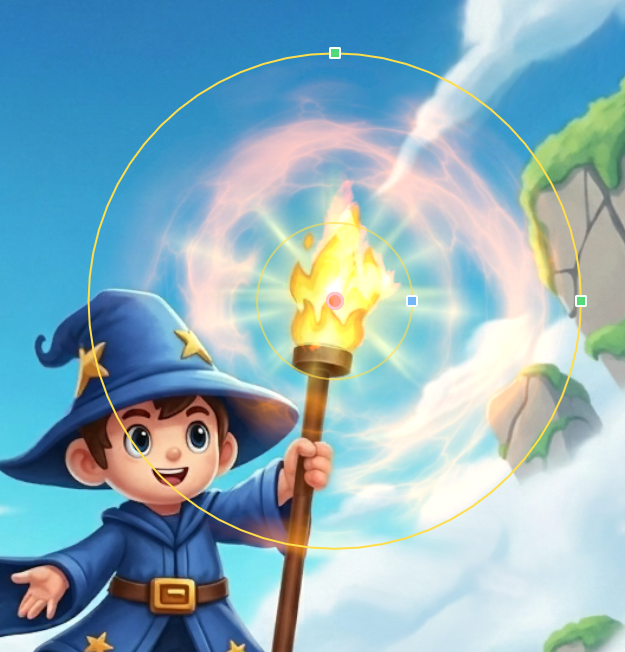
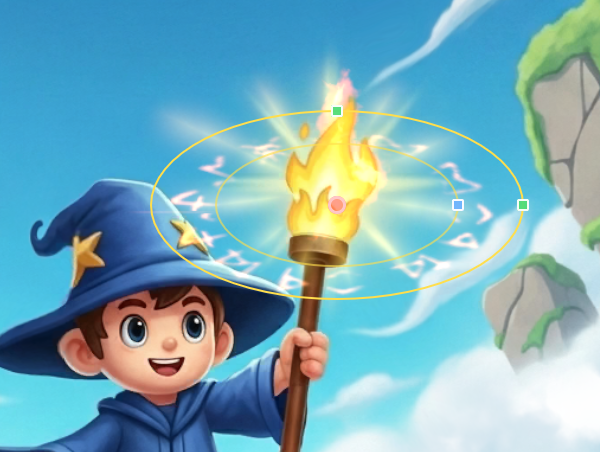
In Burst mode, the texture radiates outward from a center point. Four handles are presented on the canvas. The gold center chip moves the burst origin. The two radius chips (one on +X and one on +Y) define independent X and Y radii, which allows a circle to be stretched into an ellipse. The smaller inner radius chip, located on the +X axis between the center and the outer radius, carves a donut hole. A value of 0 produces a filled disc.
The gradient is baked using a triangle-wave angular encoding, which avoids a visible seam line at the wrap point.
Circle mode
Circle mode uses the same ellipse handles as Burst, but the texture flows around the perimeter rather than radiating outward. It is suited to effects such as a ring of fire, a ring of energy, or any other circulating motion that follows an oval contour.
In Circle mode, the scale, rotation, and stretch parameters typically require adjustment to align the texture with the rotational direction.